Detect Scheduled Task Abuse: Logs, Signals and Blind Spots
Attackers hide persistence in standard scheduler logs by mimicking system maintenance names and using encrypted task definitions that evade basic string matching.

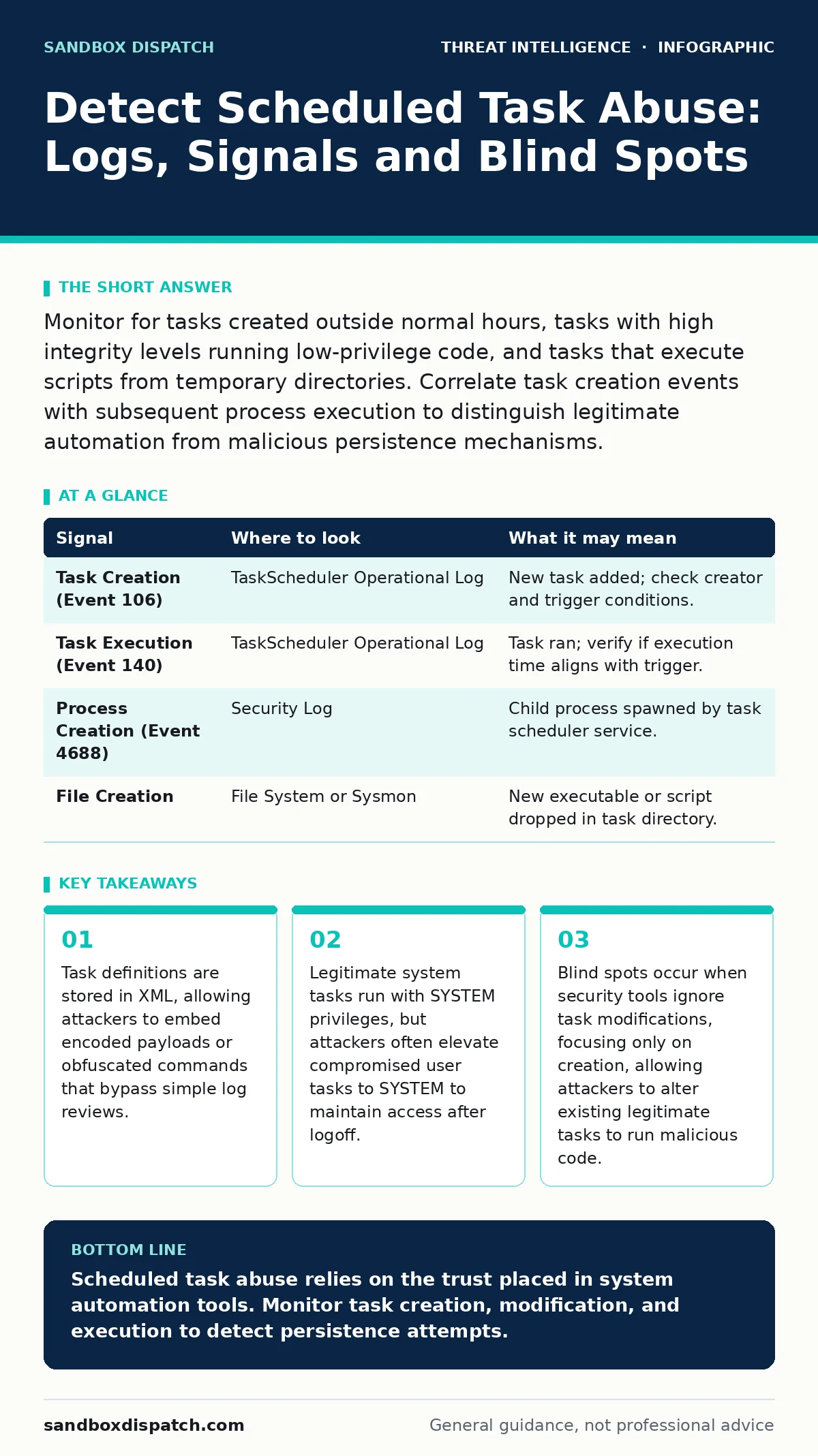
Monitor for tasks created outside normal hours, tasks with high integrity levels running low-privilege code, and tasks that execute scripts from temporary directories. Correlate task creation events with subsequent process execution to distinguish legitimate automation from malicious persistence mechanisms.
The Scheduler as a Persistence Mechanism
The Windows Task Scheduler is a core operating system component designed to automate routine operations. It allows users and administrators to schedule programs, scripts, or commands to run at specific times or in response to system events. Because it is a trusted system service, security software often treats its activity as benign by default. This trust makes it an attractive vector for maintaining access after an initial compromise.
Attackers use scheduled tasks to ensure their malicious software runs even if the user logs off or reboots the machine. This technique bypasses many endpoint detection rules that focus on active processes rather than scheduled events. Unlike a running process, a scheduled task sits dormant until triggered, making it harder to detect in real-time memory scans. Understanding how the scheduler works is the first step in recognizing when it is being abused.
Log Sources and Initial Indicators
Evidence of scheduled task abuse appears in several distinct log sources. The primary source is the Microsoft-Windows-TerminalServices-TaskScheduler/Operational log. This log records task creation, deletion, modification, and execution. You must enable this log explicitly, as it is often disabled by default on standard client installations. Disabling it is a common anti-forensics tactic, so its absence is itself a signal.
| Signal | Where to look | What it may mean |
|---|---|---|
| Task Creation (Event 106) | TaskScheduler Operational Log | New task added; check creator and trigger conditions. |
| Task Execution (Event 140) | TaskScheduler Operational Log | Task ran; verify if execution time aligns with trigger. |
| Process Creation (Event 4688) | Security Log | Child process spawned by task scheduler service. |
| File Creation | File System or Sysmon | New executable or script dropped in task directory. |
Event 106 indicates a new task was created. You should examine the user context that created the task and the XML definition. Event 140 shows when the task actually ran. If a task runs immediately after creation, it suggests an attacker is testing persistence or executing a payload. Correlate these events with Security Log Event 4688 to see what process the task spawned. This correlation connects the scheduling action to the resulting system behavior.
Analyzing Task Definitions and Triggers
The task definition is stored as an XML file in the C:\Windows\System32\Tasks directory. Attackers often obfuscate the command line within this XML to evade detection. They may use encoded commands, such as PowerShell with base64-encoded strings, or use environment variables to hide the true target. You must parse the XML content to see the full command line. Simple log viewers often truncate this data or display only the task name.
Triggers are another area of concern. Legitimate tasks usually have predictable triggers, such as daily backups or weekly updates. Attackers may set triggers to run at random intervals or in response to specific system events, like a user login or a network connection. These unusual triggers can indicate an attempt to evade time-based detection rules. Look for tasks that trigger on SystemStart or Logon for every user, as this ensures persistence across different user sessions.
Behavioral Anomalies and Privilege Escalation
Scheduled tasks can be configured to run with different integrity levels. A task created by a standard user typically runs with medium integrity. However, attackers may modify a task to run with high integrity or as the SYSTEM account. This allows them to bypass user-level restrictions and access protected resources. You should monitor for tasks that elevate their privilege level unexpectedly.
Another behavioral anomaly is the execution location. Legitimate tasks usually run executables from known directories, such as Program Files or Windows\System32. Attackers often drop malicious scripts or executables in temporary directories, user profile folders, or other writable locations. If a scheduled task executes a file from %TEMP% or %APPDATA%, it warrants investigation. These locations are common staging grounds for malware because they are writable by standard users.
Common Blind Spots in Detection
Many detection strategies focus solely on the creation of new tasks. This approach misses attackers who modify existing legitimate tasks. An attacker can change the action of a trusted task, such as a backup utility, to run their own malware. This technique leaves no record of a new task creation, only a modification event. You must monitor for changes to existing task definitions, not just new creations.
Another blind spot is the use of signed binaries to launch unsigned payloads. Attackers may create a task that runs a legitimate, signed system binary, such as certutil.exe or bitsadmin.exe, to download and execute malicious code. This technique, known as living off the land, uses trusted tools to perform malicious actions. Signature-based detection fails because the initial process is legitimate. You must analyze the command-line arguments and the resulting child processes to identify this abuse.
See also: LSASS Credential Theft: Step-by-Step Attack Chain and Defenses · Remote Desktop Abuse: Definition, Vectors, and Mitigation
Tooling and Detection Strategies
To detect scheduled task abuse, you need tools that can parse and correlate log data. Endpoint Detection and Response (EDR) solutions often include pre-built rules for suspicious task activity. However, you should customize these rules to fit your environment. Generic rules may generate excessive noise, leading to alert fatigue. Focus on high-fidelity signals, such as tasks created by non-administrative users that run with SYSTEM privileges.
Scripting tools can help automate the analysis of task definitions. You can write scripts to scan the C:\Windows\System32\Tasks directory for unusual patterns. Look for tasks with encoded commands, tasks that run from temporary directories, or tasks with triggers that do not match known maintenance windows. Integrating these scripts into your continuous monitoring process ensures you catch anomalies before they lead to a full compromise.
Reducing False Positives
Detecting scheduled task abuse generates many false positives. Legitimate software often creates and modifies scheduled tasks during installation or updates. You must establish a baseline of normal task activity in your environment. Document the tasks created by common applications and system updates. This baseline allows you to filter out known benign activity and focus on anomalies.
Correlation is key to reducing false positives. A single suspicious task may be benign, but a series of suspicious tasks linked to other malicious activity is not. Correlate task creation with other indicators, such as network connections to known malicious domains or process injections. This context helps you distinguish between legitimate automation and attacker activity. Regularly review and update your baselines to account for new software and system changes.
Key takeaways
- Task definitions are stored in XML, allowing attackers to embed encoded payloads or obfuscated commands that bypass simple log reviews.
- Legitimate system tasks run with SYSTEM privileges, but attackers often elevate compromised user tasks to SYSTEM to maintain access after logoff.
- Blind spots occur when security tools ignore task modifications, focusing only on creation, allowing attackers to alter existing legitimate tasks to run malicious code.
Scheduled task abuse relies on the trust placed in system automation tools. Monitor task creation, modification, and execution to detect persistence attempts.
Frequently asked questions
How do I enable the Task Scheduler operational log?
Open Event Viewer, expand Applications and Services Logs, then Microsoft, Windows, and TerminalServices-TaskScheduler. Right-click Operational and select Enable Log.
Can attackers hide scheduled tasks from the GUI?
Yes, attackers can create tasks with specific flags or store them in hidden directories, though they still appear in the event logs and XML files.
What is the difference between a task and a service?
Services run continuously in the background, while tasks run at specific times or events. Both can be abused for persistence, but tasks are more flexible for timed execution.
How do I investigate a suspicious scheduled task?
Export the task XML, analyze the command line and triggers, check the file system for the executed file, and correlate with process creation logs.
How this guide was produced: written by the Sandbox Dispatch editorial team with AI assistance, checked against the public references listed below, and reviewed when the facts change. See our editorial policy or report an error.