Detect DLL Sideloading: Signs, Tools, and Hidden Blind Spots
Legitimate executables often load unsigned libraries from unexpected directories, masking malicious code as routine background processes.

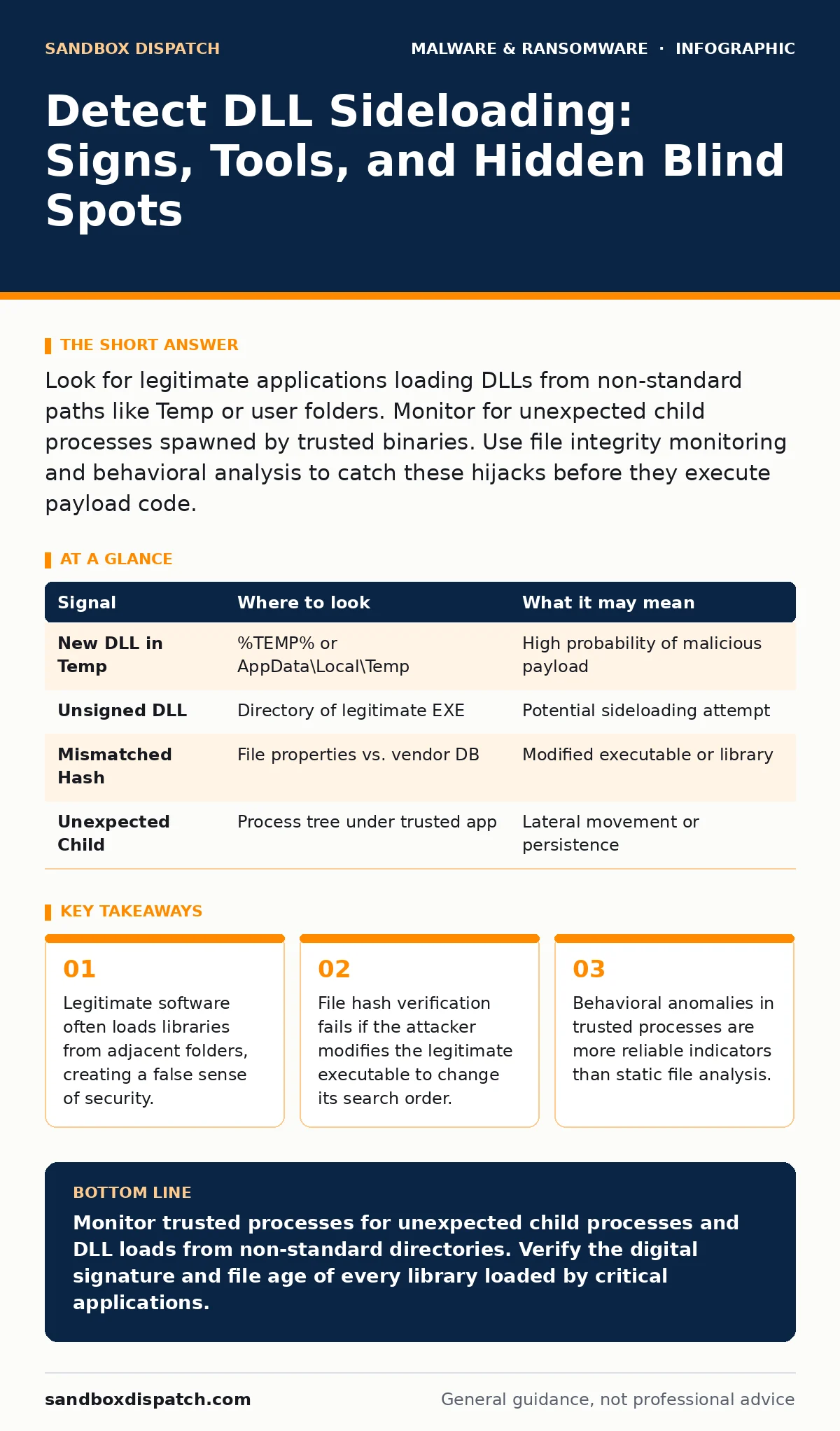
Look for legitimate applications loading DLLs from non-standard paths like Temp or user folders. Monitor for unexpected child processes spawned by trusted binaries. Use file integrity monitoring and behavioral analysis to catch these hijacks before they execute payload code.
The Search Order Trap
Windows resolves dynamic link library dependencies using a specific search order. This mechanism prioritizes the directory containing the executable over the system folder. Attackers exploit this by placing a malicious DLL in the same folder as a legitimate application. When the application runs, it loads the malicious library instead of the intended one. This technique is called DLL sideloading.
You must understand that the executable itself is often clean. It does not contain malware. It simply follows the operating system’s rules for finding dependencies. The danger lies in the environment where the application runs. If an attacker can drop a file into that directory, they control what the application loads. This makes traditional signature-based detection difficult. The executable has a valid signature from a known vendor. The malicious DLL may be unsigned or signed with a stolen certificate.
File System Artifacts
The first place to look is the file system. Attackers often place their malicious DLLs in directories where they have write access. These include the user’s temporary folder, the application data folder, or a subdirectory of the legitimate software. You should monitor for new DLL files appearing in these locations shortly before the associated executable runs.
Check the timestamp of the DLL against the timestamp of the executable. A DLL created days or weeks after the executable installation is suspicious. Legitimate updates usually replace both the executable and the library simultaneously. A mismatched age suggests an after-the-fact injection. Look for DLLs with generic names like helper.dll or utils.dll that do not match the naming convention of the software suite.
| Signal | Where to look | What it may mean |
|---|---|---|
| New DLL in Temp | %TEMP% or AppData\Local\Temp | High probability of malicious payload |
| Unsigned DLL | Directory of legitimate EXE | Potential sideloading attempt |
| Mismatched Hash | File properties vs. vendor DB | Modified executable or library |
| Unexpected Child | Process tree under trusted app | Lateral movement or persistence |
Process Tree Anomalies
When a sideloaded DLL executes, it often spawns additional processes. These child processes may look benign but originate from a trusted parent. For example, a legitimate image viewer might spawn a command prompt or a PowerShell process. This happens because the malicious DLL contains code that launches other tools.
You need to map the process tree. Look for trusted applications spawning system utilities like cmd.exe, powershell.exe, or wmic.exe. If a media player launches a network configuration tool, that is an anomaly. Check the command line arguments passed to these child processes. They often contain encoded commands or scripts that reveal the attacker’s intent. This behavior is a strong indicator of compromise, even if the initial DLL loads silently.
Network Connection Patterns
Malicious DLLs rarely act alone. They usually establish communication with a command and control server. You should monitor network traffic originating from processes that do not typically make network connections. A desktop calculator or a local file converter should not be sending data to external IP addresses.
Inspect the destination ports and protocols. Standard web traffic uses ports 80 and 443. If a local application connects to a non-standard port or uses a protocol like DNS for data exfiltration, investigate further. Look for beaconing behavior, where the process contacts the same external server at regular intervals. This pattern indicates that the DLL is reporting back to an attacker.
Common Blind Spots
Many detection systems miss DLL sideloading because they trust the parent process. If the executable is signed by a major vendor, security tools often assume all its actions are legitimate. This trust chain is broken by the sideloading attack. The malicious DLL runs with the same privileges as the parent. It can access files and network resources that the user normally can.
Another blind spot is the use of legitimate-looking filenames. Attackers name their DLLs to match the software’s naming scheme. If the software is called PhotoEditor, the attacker might name the malicious library PhotoEditorHelper.dll. This confuses automated tools that rely on filename matching. You must verify the digital signature of every DLL loaded by a process, not just the executable.
Tools for Detection
You need tools that inspect runtime behavior, not just static files. Endpoint Detection and Response platforms can monitor process creation and file access in real time. Configure them to alert on trusted processes spawning untrusted children. File Integrity Monitoring tools can detect changes to the directories where legitimate software resides.
Windows Event Logs provide valuable data. Event ID 4688 logs process creation. It includes the command line and the parent process ID. Correlate this with file creation events to see if a new DLL appeared before the process started. Sysmon, a system monitoring tool, offers more detailed logging than default Windows events. It records DLL loads and network connections with high fidelity.
Mitigation and Response
Detection is only half the battle. You must also prevent the technique from succeeding. Application whitelisting is effective but difficult to manage. A more practical approach is to restrict write access to directories containing executables. Users should not be able to drop files into the Program Files folder.
If you detect a sideloading attempt, isolate the machine immediately. The malicious DLL may have already established persistence. Check for other artifacts left by the attacker. Review related topics on malware persistence mechanisms to understand how the attacker might maintain access. See our guide on removing malware from a Windows PC for cleanup steps. Also, consider the risks of fake software updates which often deliver these payloads.
Conclusion
DLL sideloading exploits the trust users place in legitimate software. By understanding the search order and monitoring for behavioral anomalies, you can detect these attacks. Focus on the environment, not just the binary. Watch for trusted apps acting strangely. Verify the integrity of every library loaded into memory. This approach reduces the risk of silent compromise.
Key takeaways
- Legitimate software often loads libraries from adjacent folders, creating a false sense of security.
- File hash verification fails if the attacker modifies the legitimate executable to change its search order.
- Behavioral anomalies in trusted processes are more reliable indicators than static file analysis.
Monitor trusted processes for unexpected child processes and DLL loads from non-standard directories. Verify the digital signature and file age of every library loaded by critical applications.
Frequently asked questions
Does Windows Defender detect DLL sideloading?
Windows Defender may detect known malicious DLLs, but it often misses custom-built payloads that are not yet in its database. Behavioral monitoring is required for unknown threats.
How do I know if a DLL is legitimate?
Check the digital signature. Legitimate DLLs from major vendors are signed. Verify the publisher name and the timestamp. Unsigned DLLs in system directories are highly suspicious.
Can I prevent sideloading by blocking DLLs?
Blocking all DLLs breaks most applications. Instead, restrict write access to executable directories and use application control policies to limit which processes can load libraries.
What is the difference between sideloading and hijacking?
Sideloading places a malicious DLL in the search path. Hijacking often involves modifying the executable to change its search order or replacing a legitimate DLL in the system folder.
How this guide was produced: written by the Sandbox Dispatch editorial team with AI assistance, checked against the public references listed below, and reviewed when the facts change. See our editorial policy or report an error.