Browser Updates: 6 Misconceptions That Leave You Exposed
Automatic browser updates often fail to patch the underlying engine or remove compromised extensions, leaving a hidden attack surface that manual checks reveal.

Browser updates do not automatically fix all security flaws. They often leave legacy protocols enabled, fail to remove malicious extensions, and may not patch the rendering engine immediately. You must manually verify version strings, disable unused features, and audit add-ons to ensure your client software remains secure against modern exploit chains.
Misreading: Updates Fix Everything Automatically
Correct reading: Automatic updates patch the application binary, but they rarely alter default security configurations or remove previously installed extensions. The browser vendor assumes you want feature continuity, not security hardening. An update installs new code alongside old settings. If you enabled a deprecated protocol last year, the updated browser still supports it. The update mechanism prioritizes stability over security posture changes. You must manually adjust settings after an update to maintain a secure configuration. This aligns with broader configuration hardening practices where defaults are rarely secure.
Imagine you enable automatic updates but never touch your settings menu. A new version installs, bringing improved performance but retaining your permissive privacy settings. The browser does not roll back changes you made manually. It does not scan for malicious extensions you installed months ago. The update process is additive, not corrective. You remain exposed to risks you introduced previously. The software assumes your previous choices were intentional. This assumption creates a persistent gap in your defense.
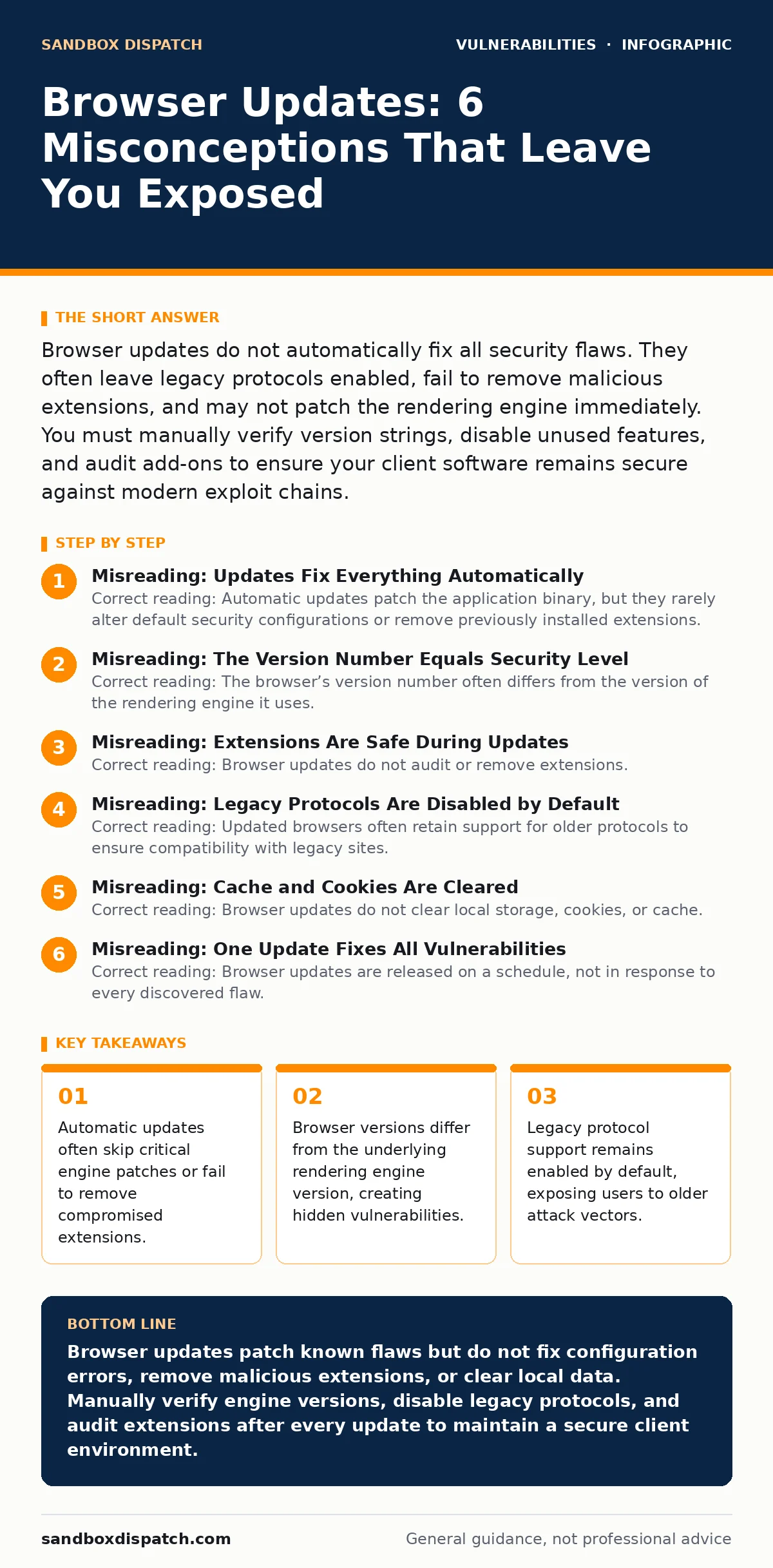
Misreading: The Version Number Equals Security Level
Correct reading: The browser’s version number often differs from the version of the rendering engine it uses. Many browsers use a shared engine, such as Chromium, while maintaining separate application versions. A browser might display version 120 while running an engine version that has known vulnerabilities. Attackers target the engine, not the shell. You must check the engine version, not just the browser name. This distinction matters when evaluating unpatched software risks. The application wrapper can be updated while the core remains vulnerable.
Suppose you verify that your browser is on the latest release. You feel secure because the version number matches the vendor’s latest release. However, the underlying engine might be a fork with delayed patches. The vendor may prioritize feature development over engine security. You are running old code inside a new package. This discrepancy is a common oversight. You need to inspect the user agent string or engine details. Do not trust the marketing version number. The engine is where the code execution happens.
Misreading: Extensions Are Safe During Updates
Correct reading: Browser updates do not audit or remove extensions. They continue to grant permissions to add-ons installed before the update. A malicious extension retains its access to your tabs, cookies, and local storage. The update process does not re-evaluate extension trust. You must manually review and remove unused extensions. This is a critical part of attack surface management. Each extension is a potential entry point. The browser trusts the extension store at the time of installation. It does not retroactively revoke trust.
Imagine an extension was benign when you installed it. Months later, the developer’s account is compromised. The extension now exfiltrates data. Your browser updates to the latest version, but the extension remains active. The update does not scan the extension’s code for new threats. It assumes the extension is still safe. You must periodically audit your extension list. Remove anything you do not use daily. Check permissions against functionality. An extension that reads emails does not need access to your camera.
Misreading: Legacy Protocols Are Disabled by Default
Correct reading: Updated browsers often retain support for older protocols to ensure compatibility with legacy sites. Features like TLS 1.0 or weak ciphers may remain enabled in advanced settings. The browser does not disable these automatically. You must manually disable them in the settings menu. Keeping them enabled exposes you to downgrade attacks. This relates to HTTP request smuggling risks where protocol ambiguities are exploited. The browser prioritizes functionality over strict security. You must choose between compatibility and security.
Suppose you visit a modern site. The browser uses the latest secure protocol. You feel safe. However, if you visit an older site, the browser may downgrade to an older protocol. This downgrade can be intercepted. Attackers can force this downgrade. The browser allows it to prevent connection errors. You must disable legacy protocols manually. This breaks compatibility with some old sites. It is a trade-off. You must decide if compatibility is worth the risk. Most modern sites support current standards.
Misreading: Cache and Cookies Are Cleared
Correct reading: Browser updates do not clear local storage, cookies, or cache. These files persist across updates. Malicious scripts can store session tokens or credentials in local storage. An update does not remove this data. You must manually clear your browsing data. This is vital for mitigating session fixation attacks. The browser treats local data as user state. It preserves it to maintain your login sessions. This convenience is a security risk. You must regularly purge local data. Do not rely on updates to sanitize your local environment.
Imagine a script injects a malicious cookie. The browser updates to a new version. The cookie remains in place. The new version does not scan local files for threats. It assumes the data is valid. You remain logged in with a compromised session. The update process is blind to local data integrity. You must clear cookies and cache manually. This resets your session state. It forces re-authentication. This step removes stored malicious state. It is a necessary hygiene practice.
See also: Configuration Hardening FAQs: Secure Defaults and Attack Surface Reduction
Misreading: One Update Fixes All Vulnerabilities
Correct reading: Browser updates are released on a schedule, not in response to every discovered flaw. Critical vulnerabilities may exist between update cycles. Zero-day exploits can target the browser before a patch is available. You cannot rely on updates for immediate protection. You must use additional layers of defense. This connects to exploit chains that bypass single-point failures. The browser is just one component. Your operating system and network settings also matter. Updates are reactive, not proactive. You must assume vulnerabilities exist.
Suppose a critical flaw is discovered. The vendor needs time to develop and test a fix. You are vulnerable during this window. The browser does not patch itself instantly. You must wait for the next scheduled update. In the meantime, you are exposed. You should use sandboxing or containerization. These techniques limit the damage. They do not prevent the exploit. They contain the impact. You must layer defenses. Do not trust a single update.
Misreading: Automatic Updates Are Sufficient
Correct reading: Automatic updates often fail due to permission issues, network blocks, or user interference. The browser may report an update is pending, but never completes it. You must manually trigger updates periodically. This is part of effective patch management. Relying on automation without verification is risky. You must confirm the update installed successfully. Check the version number manually. Do not trust the "up to date" message blindly. Verify the binary. Ensure the process completed. This manual check closes the gap.
Imagine your network blocks the update server. The browser fails silently. You continue using an outdated version. You believe you are secure. You are not. The update failed. You must check for updates manually. Force the check. Verify the version. This step ensures you have the latest patches. It compensates for automation failures. It is a simple but effective check. Do not skip it.
Misreading: The Browser Isolates All Threats
Correct reading: Browser sandboxing is not perfect. Escape vulnerabilities allow code to break out of the sandbox. Once escaped, the code has full system access. Updates patch known escape vectors, but new ones are discovered. You must assume the sandbox can be bypassed. Use least privilege principles. Run the browser with limited user rights. This reduces the impact of an escape. This relates to PHP object injection risks where data deserialization leads to code execution. The browser is a complex application. Complexity breeds bugs.
Suppose an attacker exploits a sandbox escape. They gain access to your file system. The browser update cannot prevent this if the escape is new. You must limit the browser’s permissions. Run it as a standard user. Do not run it as an administrator. This limits the damage. It does not prevent the exploit. It contains the impact. You must layer defenses. Assume the sandbox fails.
Key takeaways
- Automatic updates often skip critical engine patches or fail to remove compromised extensions.
- Browser versions differ from the underlying rendering engine version, creating hidden vulnerabilities.
- Legacy protocol support remains enabled by default, exposing users to older attack vectors.
- Extension permissions persist across updates, allowing malicious code to survive client upgrades.
Browser updates patch known flaws but do not fix configuration errors, remove malicious extensions, or clear local data. Manually verify engine versions, disable legacy protocols, and audit extensions after every update to maintain a secure client environment.
Frequently asked questions
Do browser updates remove malicious extensions automatically?
No, browser updates do not scan or remove extensions. You must manually review and remove any extensions that are no longer needed or that have suspicious permissions.
How do I check if my rendering engine is patched?
Check the user agent string in developer tools or the browser’s "About" page. Compare the engine version with the vendor’s security advisory to ensure you have the latest patched engine.
Should I disable automatic browser updates?
No, keep automatic updates enabled but verify they install correctly. Manual verification ensures that network blocks or permission issues do not prevent critical patches from being applied.
Do updates clear my cookies and local storage?
No, updates preserve local data to maintain user sessions. You must manually clear cookies and cache to remove potentially compromised session tokens or stored malicious data.
How this guide was produced: written by the Sandbox Dispatch editorial team with AI assistance, checked against the public references listed below, and reviewed when the facts change. See our editorial policy or report an error.